

The model still gets built cell by cell
Hey, I'm Wallace Darling (most people call me Wally). I run Darling Financial Group (darling-fg.com). I work with people earning $500k+ and business owners with $1M+ in revenue on the tax strategy that sits beyond the return, and I partner with CPA firms on that strategy layer so their clients get it without ever leaving the firm.
- Setup
- About 15 minutes, once
- You need
- Claude Pro, Max, Team or Enterprise, and Microsoft 365 Excel
- You get
- A linked 36-month model, built inside your workbook
Most CPAs I speak to use Claude in a browser tab. They copy the answer into Excel and rebuild it by hand, so the forecast, the cash flow and the scenario for the client meeting still get built cell by cell, usually after six. Claude has run inside Excel itself for a while now, on the paid plans, and it's sitting unused in most of the firms I see.
What you'll get: the four ways I use it on client models, each with the exact prompts. Build a three-statement, 36-month forecast from a QuickBooks trial balance. Start it by talking to your phone on the way back from the meeting. Flex it live in front of the client. Fix the spreadsheet the client built themselves. Then the one rule that runs through all of it: check every formula, stress the assumptions and read the chart ranges before anything goes near a client.
What you need, and putting Claude inside Excel
Three things: a paid Claude plan, a version of Excel the add-in runs on, and about fifteen minutes the first time.
Claude plans. Anthropic's documentation lists Claude in Excel as generally available on the Pro, Max, Team and Enterprise plans. Check current plans and prices at claude.com/pricing. For a firm, use Team or Enterprise, so client work sits under business terms and the firm controls who has access.
Excel versions. The add-in needs a current Microsoft 365 build. Your phone's Excel app won't run it, which is why the phone workflow in section 3 uses the Claude app instead.
| Excel | Runs Claude? |
|---|---|
| Excel on the web | Yes |
| Excel for Windows, Microsoft 365 | Yes, on a recent build |
| Excel for Mac | Yes, version 16.46 or later |
| Excel 2016 or 2019 (one-time purchase) | No |
| Excel on iPad or Android | No |
If your firm prepares the client's return. Check how your engagement letter and consent setup handles client data in AI tools. Under IRC Section 7216 a return preparer generally needs the client's written consent before using or disclosing tax return information for purposes other than preparing the return (26 CFR 301.7216-3). A forecast runs on the books, not the return, but the same people often hold both.
Install it for yourself
- Open Microsoft AppSource in a browser.
- Search for Claude for Microsoft 365.
- Select Get it now.
- Open Excel.
- Open the add-in from the Add-ins button on the Home tab.
- Sign in with your Claude account.
Install it for the whole firm (Microsoft 365 admin)
- Open the Microsoft 365 admin center.
- Go to Settings, then Integrated apps, then Add-ins.
- Search for Claude for Microsoft 365.
- Assign it to the firm, or to the staff who build models.
If the store is switched off for your firm, the admin first turns on Let users access the Office Store under Settings, Org settings, User owned apps and services.
Switch on file creation in the Claude app
The phone workflow needs Claude to hand back an Excel file. On Pro and Max, turn it on yourself. On Team and Enterprise, the owner sets it for the organization.
- Open Settings in Claude (on the phone, tap your name or initials in the side menu).
- Select Capabilities.
- Turn on Code execution and file creation.
Give it the firm's standing instructions
The Excel add-in has its own settings where you can save instructions it follows on every workbook. Put the firm's model conventions there once, so nobody types them into every chat.
You are working in a CPA firm's client models.

Conventions:
- Inputs live on the Inputs tab only. Blue font for inputs, black for formulas.
- No hard-coded numbers inside formulas. Every assumption gets its own labeled cell on Inputs.
- Negative numbers in parentheses. Thousands separators. No decimals on dollars.
- Months run across columns, one column per month. Labels in column A.
- Every model has a Checks tab. Each check returns TRUE or FALSE.
- Use US terms: accounts receivable, accounts payable, payroll taxes, estimated tax payments.

Behavior:
- Before you change or overwrite anything, tell me which cells you will change.
- When you answer a question, cite the cells.
- If an assumption is missing, ask me. Do not guess and do not fill in a default without saying so.Build the model from a trial balance
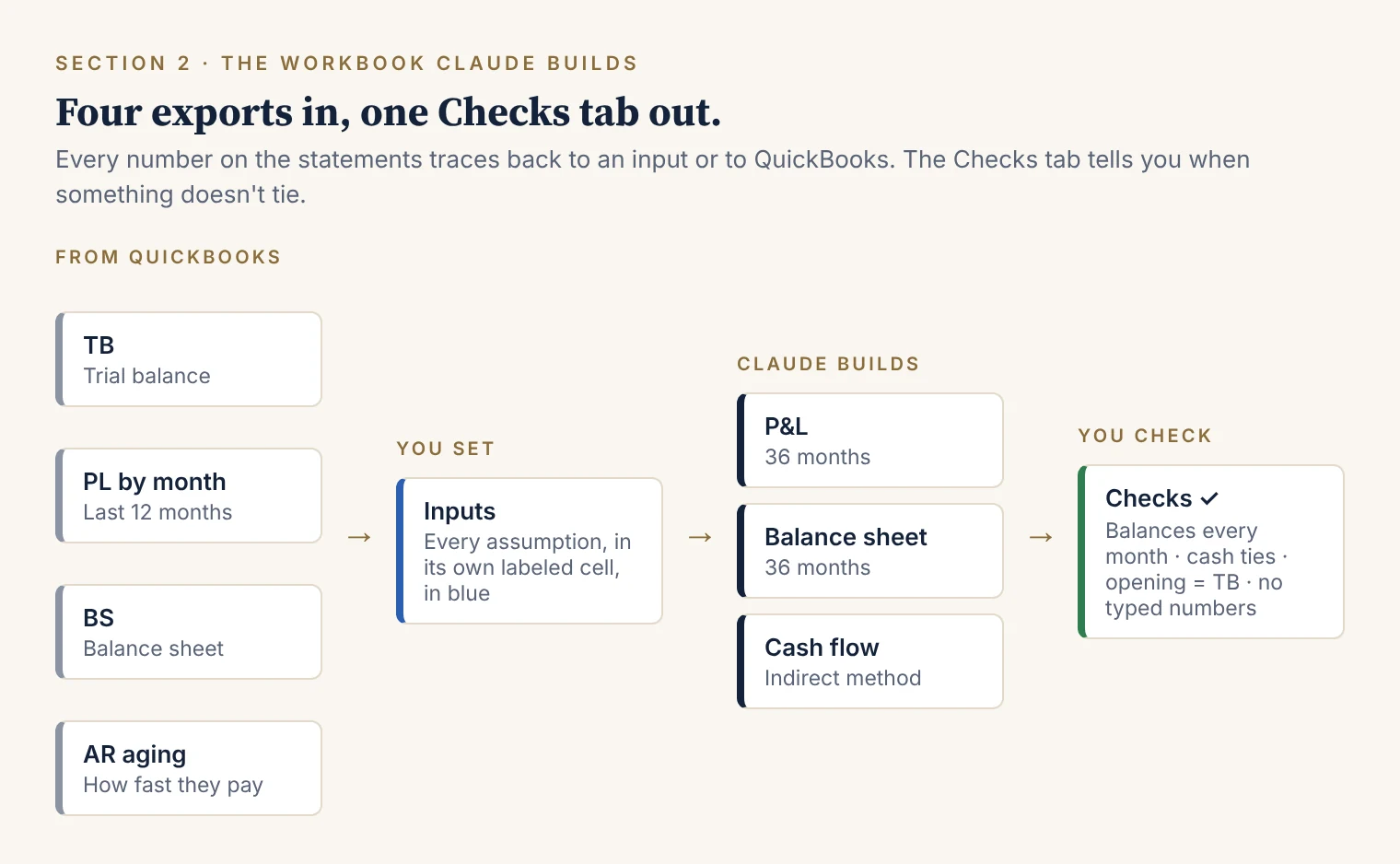
This is the one to learn first. You give Claude the client's trial balance and a plain-English description of the model. Claude builds the tabs, writes the formulas and links them, inside the workbook you have open.
Get the numbers out of QuickBooks
A trial balance gives Claude the opening position. For a monthly forecast you also want the last twelve months by month, so the run rates come from the client's own history.
| QuickBooks Online report | Settings | What the model uses it for |
|---|---|---|
| Trial Balance | As of the last month end | Opening balances for every account |
| Profit and Loss by Month | Last 12 months | Sales, cost of sales and overhead run rates, and seasonality |
| Balance Sheet | As of the last month end | Receivables, payables, loans, credit cards, payroll liabilities |
| A/R Aging Summary | As of the last month end | How fast customers actually pay, for receivable days |
- In QuickBooks Online, open Reports.
- Search for the report name.
- Set the dates.
- Select Run report.
- Select the export icon.
- Select Export to Excel.
Report names can vary slightly by edition. Copy each export into its own tab of one new workbook: TB, PL by month, BS, AR aging. Save the workbook as the client code and the date, for example HDG01 forecast v1.xlsx.
Describe the model
Open Claude in the workbook and describe what you want the way you'd brief a senior. The more specific the brief, the less you fix later.
Build a monthly three-statement forecast for [CLIENT CODE] from the tabs in this workbook.

Sources:
- TB: trial balance as of [MONTH END]. Use it for every opening balance.
- PL by month: the last 12 months. Use it for run rates and seasonality.
- BS: balance sheet as of the same date.
- AR aging: use it to set receivable days.

Build these tabs:
1. Inputs. Every assumption in its own labeled cell: sales growth by year, price increase and the month it starts, gross margin, each payroll line, rent, other overhead, receivable days, payable days, owner salary, owner distributions, loan payments, capital purchases, estimated tax payments by quarter.
2. P&L. 36 months, starting [FIRST FORECAST MONTH].
3. Balance sheet. 36 months. Opening balances from TB.
4. Cash flow. 36 months. Indirect method, built from the P&L and the balance sheet movements.
5. Checks. One row per check, each returning TRUE or FALSE:
   - Balance sheet balances every month.
   - Closing cash on Cash flow equals cash on the Balance sheet every month.
   - Opening balances equal TB.
   - No hard-coded numbers in formula rows on P&L, Balance sheet or Cash flow.

Rules:
- Start every assumption from the client's last 12 months and show me the number you used.
- Where the history doesn't give you an assumption, leave the input blank, color it yellow and list it for me.
- When you finish, give me: the tabs you built, the assumptions you set and where each came from, and the yellow cells I need to fill.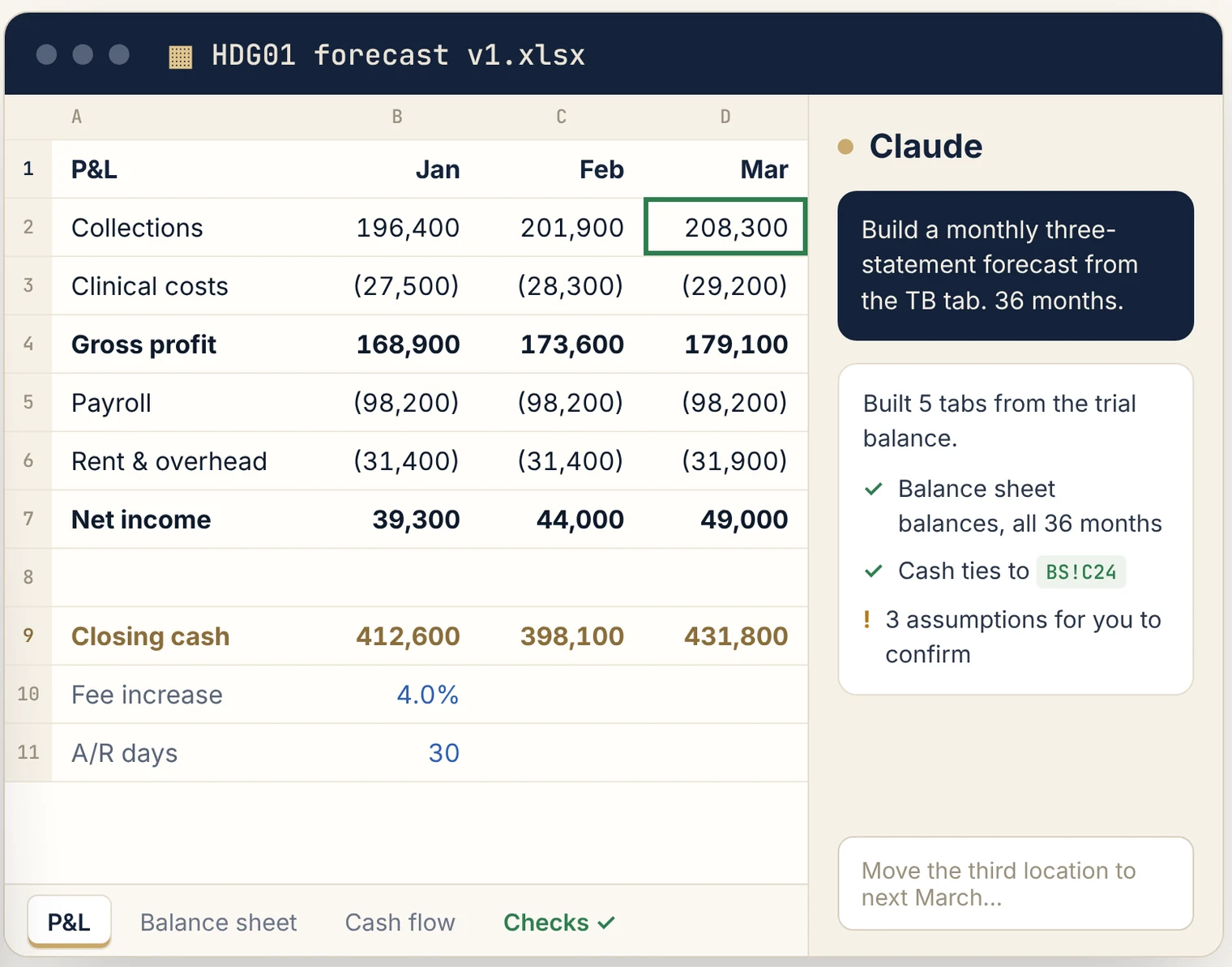
Check it
- Open the Checks tab. Every row must say TRUE.
- Click three of the cell citations in Claude's answer. Confirm each one points where it says.
- Compare month 1 opening cash with the bank balance on the TB.
- Fill every yellow input, or write down who you will ask.
- Read the Inputs tab top to bottom as if the client were reading it.
Ask it where a number came from
Claude in Excel answers with cell-level citations you can click. Use that on every number you'd be uncomfortable explaining to the client.
Explain how closing cash in [MONTH] is calculated.
Walk back from that cell to the inputs it depends on.
Cite every cell on the way, and tell me which inputs move it the most.Start it on your phone
The brief is freshest in the parking lot after the meeting. Talk it into the Claude app on your phone and ask for an Excel file back. The next morning you open the file at your desk and carry on inside Excel.
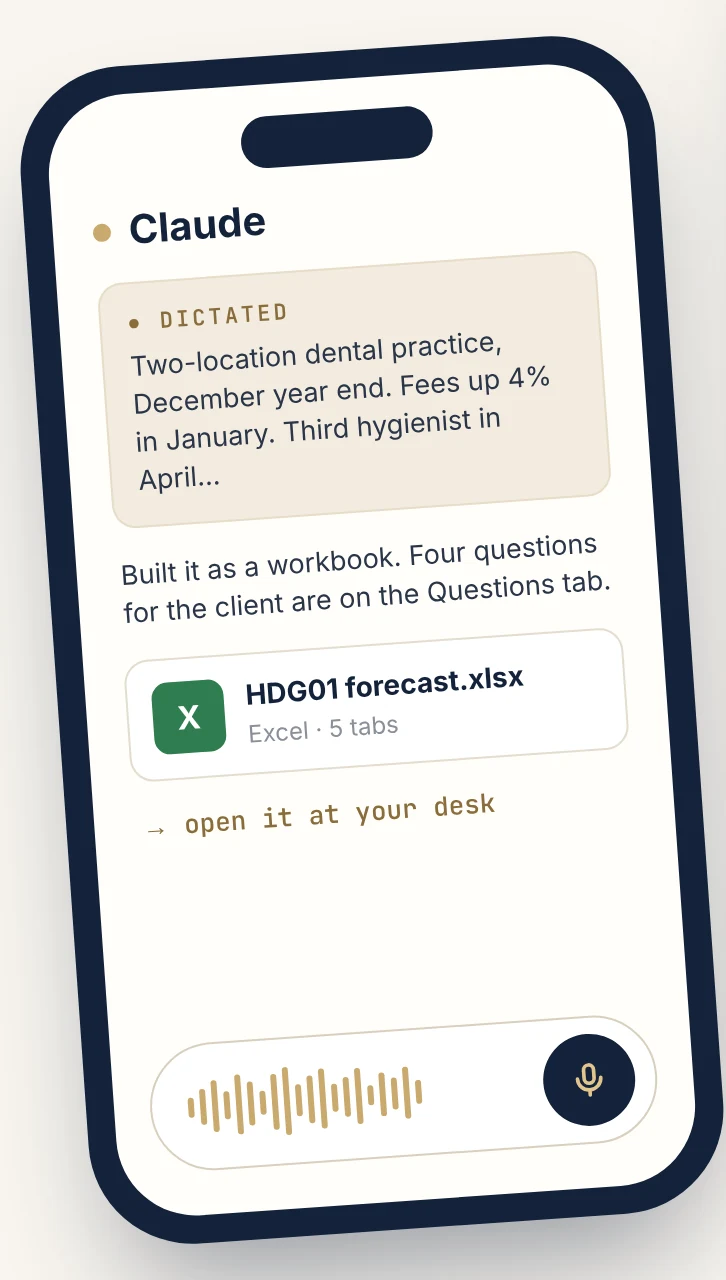
The phone can't run the Excel add-in, so this part happens in the Claude app with file creation switched on (section 1). Keep client names out of what you say: use the client code.
What to say
Tap the microphone in the Claude app and cover these, in any order. It doesn't need to be tidy.
- What the business does, how many locations, and the fiscal year end.
- Rough annual sales and how they move through the year.
- Any price increase and when it starts.
- Planned hires: role, monthly cost, start month.
- Big purchases or a new location, with the month.
- Loans: balance, monthly payment, any new borrowing.
- How fast customers pay, if you know.
- What the owner takes out: salary, distributions, and whether that changes.
- The decision the forecast is for: a hire, a lease, a loan, a year-end payout.
Client HDG01. Two-location dental practice, December year end.
About 2.4 million in collections this year, a bit slower in July and December.
Fee increase of 4 percent in January.
They want a third hygienist starting in April, about 7,500 a month all in.
Third location possibly next September, roughly 350,000 of equipment and build-out,
probably financed. Existing equipment loan is 180,000, about 5,200 a month.
Insurance pays in about 30 days, patients mostly at the visit.
Owner takes 240,000 salary and about 300,000 in distributions.
The question is whether they can open the third site and still pay the
year-end distribution.Turn what I just said into an Excel workbook I can open on my laptop.
Tabs:
1. Inputs: every number I mentioned, in its own labeled cell. Blue font for inputs.
2. P&L: monthly, 36 months from [FIRST MONTH].
3. Balance sheet and Cash flow: monthly, linked to the P&L.
4. Questions: every assumption I didn't give you, written as a question I can ask the client.
Use formulas, not typed numbers, everywhere except Inputs.
Mark any number you assumed in yellow and list it on the Questions tab.
Name the file [CLIENT CODE] forecast v1.xlsx.At your desk the next morning
- Download the file from the chat and open it in Excel.
- Add the TB tab and the other QuickBooks exports (section 2).
- Open Claude in the workbook.
- Send the prompt below.
- Run the checks in section 2.
This workbook was drafted from a spoken brief. The TB, PL by month and BS tabs now hold the client's actual QuickBooks numbers.

1. Replace every opening balance with the TB figure.
2. Compare each run-rate input on Inputs with the last 12 months on PL by month. List any input that is more than 10 percent away from the history, with both numbers.
3. Add the Checks tab if it is missing, and make every check TRUE.
4. Tell me which cells you changed before you change them.Flex it live with the client
This is where the model earns its fee. Claude changes inputs while keeping the formula links intact, so every dependent cell recalculates. The client asks "what if we..." and you answer it in the room, instead of rebuilding the model that night.
Before the meeting
- Save a copy of the model. Name it with the meeting date.
- Confirm every row on the Checks tab is TRUE.
- Add a Scenarios tab with a column for Base and one column per scenario.
- Open Claude in the workbook.
Build a Scenarios tab.
Rows: the inputs most likely to change in the meeting (price increase and start month, sales growth, each new hire and start month, the new location and its month, new borrowing, owner salary, owner distributions).
Columns: Base, then Scenario 1 to 4.
Add a switch cell at the top that picks which column the model uses.
Below the inputs, show for each column: lowest closing cash and the month it happens, year 1 to 3 net income, and year-end cash for each year.
In the meeting
Change one thing at a time, so the client sees what each decision does. Claude warns you before it overwrites data, and it tells you which cells it changed.
In Scenario 1, move the third location from [MONTH] to [MONTH].
Keep everything else as Base.
Show me the lowest closing cash, the month it happens, and year-end cash for each year, next to Base.In Scenario 2, finance the equipment for the third location with a [TERM]-year loan at [RATE] percent instead of paying cash.
Add the loan to the balance sheet and the payments to the cash flow.
Compare lowest closing cash and year-end cash with Scenario 1.The rows that turn into tax questions
Most owner forecasts end on the same few lines, and every one of them is a tax decision as much as a cash decision:
| Row in the forecast | The question it raises |
|---|---|
| Owner salary | Is the salary set right for the entity, and does the split between salary and distributions still hold up? |
| Owner distributions | How big can the year-end payout be after the tax it triggers, and when should it land? |
| Estimated tax payments | Do the quarterly estimates match the year the forecast shows, or the year that already happened? |
| Retirement plan contribution | Would a larger plan, such as a cash balance plan, cut the tax more than it costs in cash? |
| Equipment and build-out | Which year does the deduction land in, and does that match the year the income is highest? |
After the meeting
Write a one-page summary of this meeting for the client file, from the Scenarios tab.
For each scenario: what changed, lowest closing cash and its month, and year-end cash for each year.
Then list the decisions the client said they would make, and the open questions.
Plain English. No formulas in the text.Fix the spreadsheet the client built
Every firm has the client who arrives with their own model: twelve tabs, three colors, and a #REF! in the total. Claude can map it, trace the errors to where they start and explain a formula before you touch it.
Do not change anything yet.
Map this workbook for me:
1. Each tab, what it seems to do, and which tabs it pulls from.
2. Where the inputs are, and any inputs typed inside formulas.
3. Every error cell (#REF!, #DIV/0!, #VALUE!, #N/A), with the cell address.
Cite the cells.For each error cell you found, trace it back to the first cell where the error starts.
Group the errors by root cause.
For each root cause: what broke, the fix you suggest, and every cell the fix would change.
Do not apply anything until I say which fixes to make.Explain the formula in [CELL] in plain English, step by step.
Tell me what each referenced cell holds, what the result means, and anything in it that looks wrong or fragile.| What you'll usually find | What to ask Claude for |
|---|---|
| #REF! after someone deleted a row or a tab | The cell the reference used to point to, and a rebuilt formula |
| Totals that skip the last row someone added | Every SUM whose range stops short of the data |
| Numbers typed over formulas | Every cell in a formula row that holds a typed number |
| Links to another file nobody has | Every external link, and what it was pulling |
| A chart that stopped updating | The chart's source range against the data range |
Two things the add-in doesn't do, per Anthropic's documentation: Excel data tables, and macros or VBA. If the client's model runs on either, fix that part by hand.
Check every formula before anything goes near a client
One rule runs through all of it, and it's the one I'd give a new staff accountant: check every formula, stress the assumptions and read the chart ranges before anything goes near a client. Anthropic says the same thing in its own documentation: don't send a final client deliverable without human review.
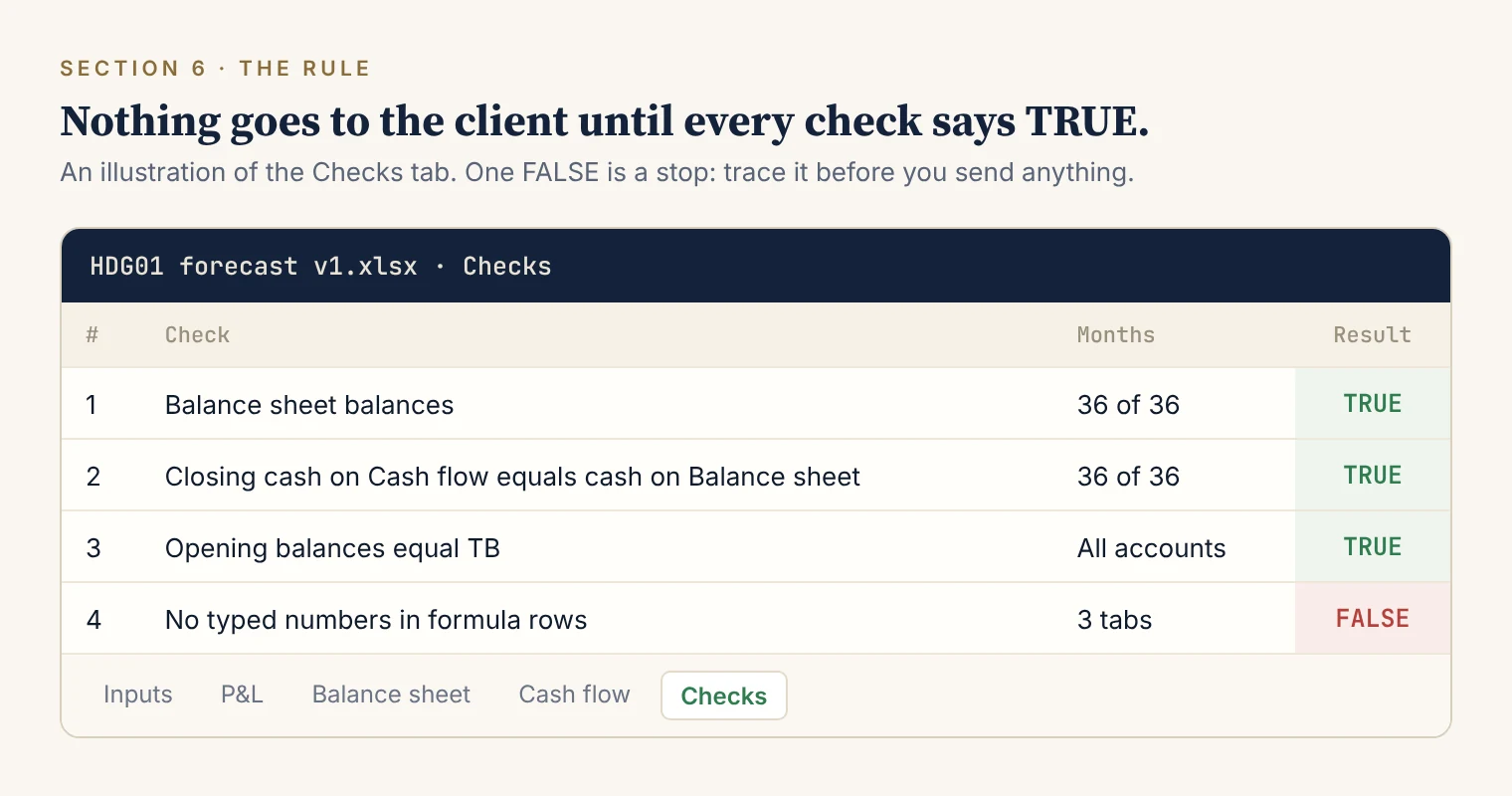
Claude gets the model most of the way in minutes, and your judgment does the rest, which is the part clients were paying for in the first place.
The review checklist
- Every row on the Checks tab is TRUE.
- Opening balances tie to the QuickBooks trial balance.
- Month 1 opening cash matches the bank.
- No typed numbers in formula rows on P&L, Balance sheet or Cash flow.
- Every input on the Inputs tab has a source: the client's history, the client's answer, or your judgment, written next to it.
- Signs are right: costs negative, receipts positive, nothing flipped in the cash flow.
- Every chart's range covers all 36 months and only the rows it says.
- Totals include the last row and the last month.
- Units are consistent: dollars, not thousands, unless the header says so.
- Stress test run: sales 10 percent lower and customers paying 15 days slower. You know the month cash goes lowest.
Review this model as if you were the reviewer who has to sign it off.
Check:
1. Every formula row on P&L, Balance sheet and Cash flow for typed numbers, broken ranges and references that skip a month.
2. Every chart: its source range against the data it claims to show.
3. Every input: whether it is consistent with PL by month and the TB. List any that are not, with both numbers.
4. Signs in the cash flow.
Do not fix anything. Give me a numbered list of findings with cell addresses.Add a stress scenario on the Scenarios tab: sales 10 percent below Base in every month, and receivable days 15 days longer.
Show lowest closing cash and its month, against Base.
Then tell me the three inputs that move lowest closing cash the most.Rolling it out in the firm
Start with one person and one client. The add-in is quick to install. What takes time is a review habit everyone trusts.
| Week | What to do |
|---|---|
| Week 1 | One person installs the add-in, saves the standing instructions, and asks Claude to explain three formulas in a model they already know. |
| Week 2 | Build one client model from a trial balance (workflow 1) next to the version you'd have built by hand. Compare them line by line. |
| Week 3 | Run the phone brief (workflow 2) after one client meeting, and the review checklist on the result. |
| Week 4 | Take the model into a client meeting and flex it live (workflow 3). Write down every question the client asked. |
| After that | Make the Checks tab and the review checklist part of the firm's sign-off for every model, whoever built it. |
Name each workbook with the client code and a version, and keep the meeting copies. When a client asks in March why the forecast said what it said in October, you want the file that was on the screen.
Where I fit
Open one client's trial balance this week and ask Claude to explain a formula you didn't write, because that's the quickest way to find out whether you trust it.
Once the forecast is built, the conversations change. The owner stops asking what happened last year and starts asking what to do about next year: how much to pay themselves, whether to take the distribution in December, whether a bigger retirement plan beats the new truck. Those are the questions I work on with CPA firms.
This page is general educational information. It is not tax, legal or investment advice, and it does not create an adviser relationship. Product features, plans and menus change, so check the current details with Anthropic, Microsoft and Intuit before you rely on them. The client in the examples is invented.
Last updated October 16, 2026